
Getting Started with Claude Cowork: A Plain-English Guide
Most people know Claude as a chat window. You type a question, it types an answer, and you copy-paste the result into wherever it actually needs to go. Useful, but you're still doing the work of moving things around.
Claude Cowork is different. Instead of just answering questions, it does genuine work — working with the actual files on your computer, using the apps you already use, and handing you a finished result. And it can do it on a schedule, while you're in a meeting or asleep.
This is a getting-started guide for non-technical people. If you can download and install an app, you can use Cowork.
I'll cover what Cowork actually is, who it's for, what it costs, how to set it up, and three simple tasks you can run in your first week. Nothing fancy — just the basics done right.
What Is Claude Cowork (and How Is It Different From Regular Claude)?
There are a few names that can get mixed up here — Claude, Claude Desktop, Claude Cowork, and Claude Code.
Claude (chat) is the one most people already know. You open it in your web browser, ask a question, and it answers. Genuinely useful — but it can't touch anything on your computer. You copy-paste every result by hand to wherever it actually needs to go.
Claude Desktop is an app you install on your Mac or PC. Think of it as the full version of Claude. It has all the same chats you have in the browser, plus the advanced features that only work on a desktop.
Claude Cowork is a feature inside Claude Desktop — that Cowork tab. This is the one that does the work. You give it access to a folder on your computer, describe what you want in plain language, and it goes and does it — reading files, writing documents, building spreadsheets, sending emails — then hands you the finished result. With chat, you ask and it answers. With Cowork, you ask and it delivers.
So the relationship, boiled down: Claude Desktop is the app you install; Cowork is the feature inside it that turns Claude into a capable assistant.
Claude Code is a tool that also lives inside Claude Desktop (among other places), but it's built for developers, and I won't get into it here — you can effectively ignore that tab unless you're very technical or want to play around.
Who Is It For?
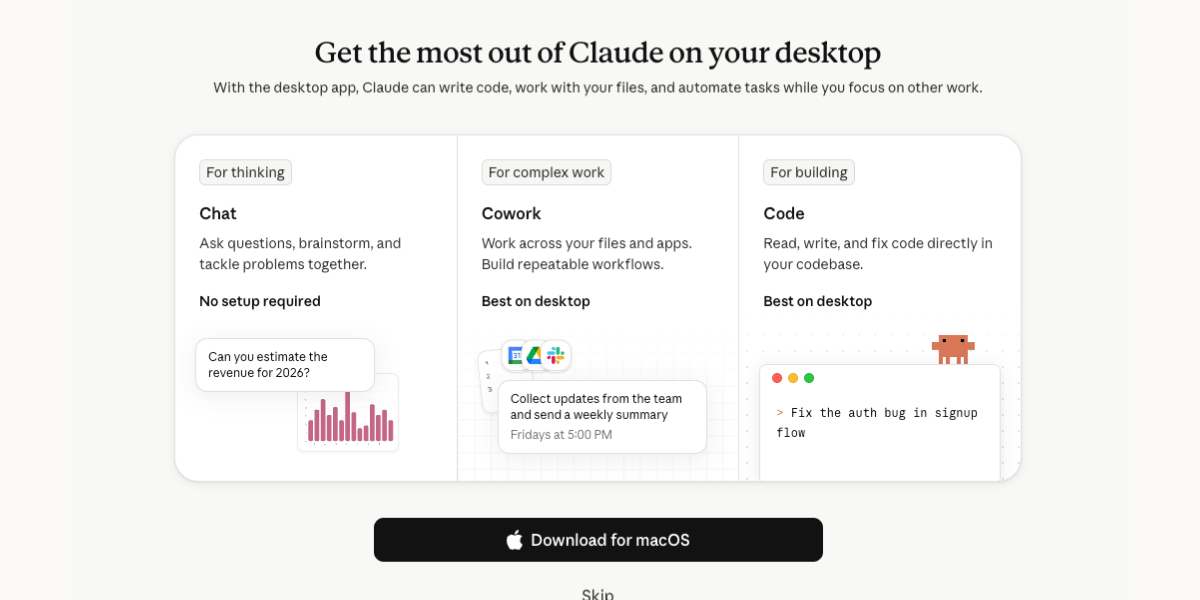
Cowork was built for knowledge workers who aren't developers.
It puts the power of a coding agent behind the friendly interface of a chat window — so non-technical folks with file-heavy work get the horsepower without ever touching a command line.
If you spend a good part of your week building slide decks, living in spreadsheets, generating reports, or writing status updates, Cowork could be your new best friend.
Requirements and Setup
The good news: setup is genuinely easy. Here's what you need.
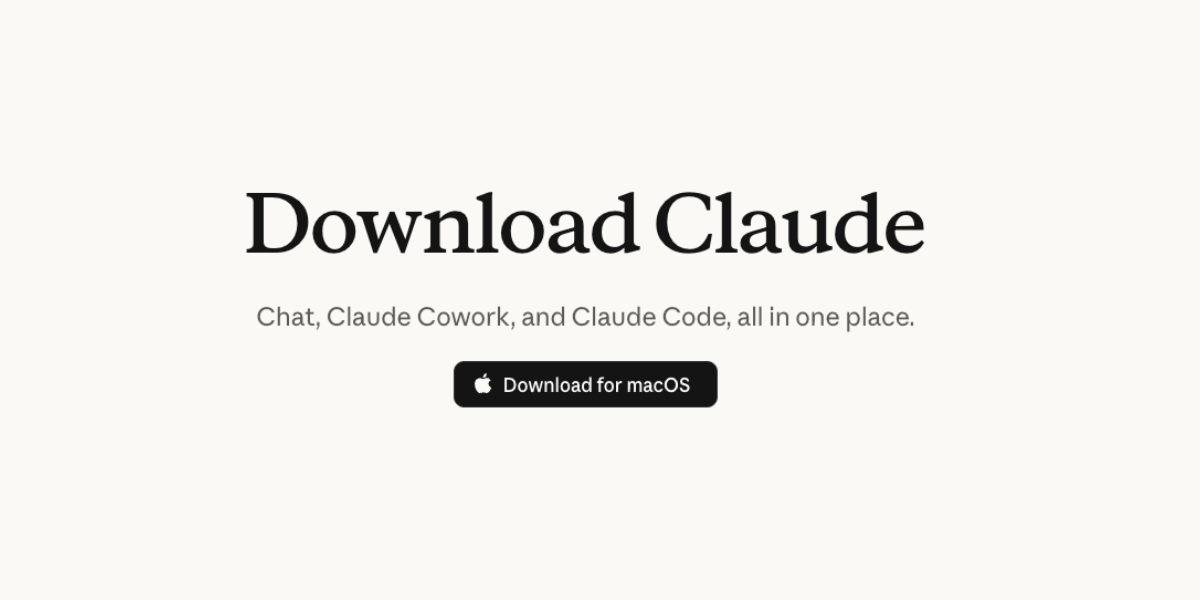
1. The Claude Desktop app. Cowork lives inside it. Download it (or update to the latest version) at claude.com/download. It runs on both macOS and Windows.
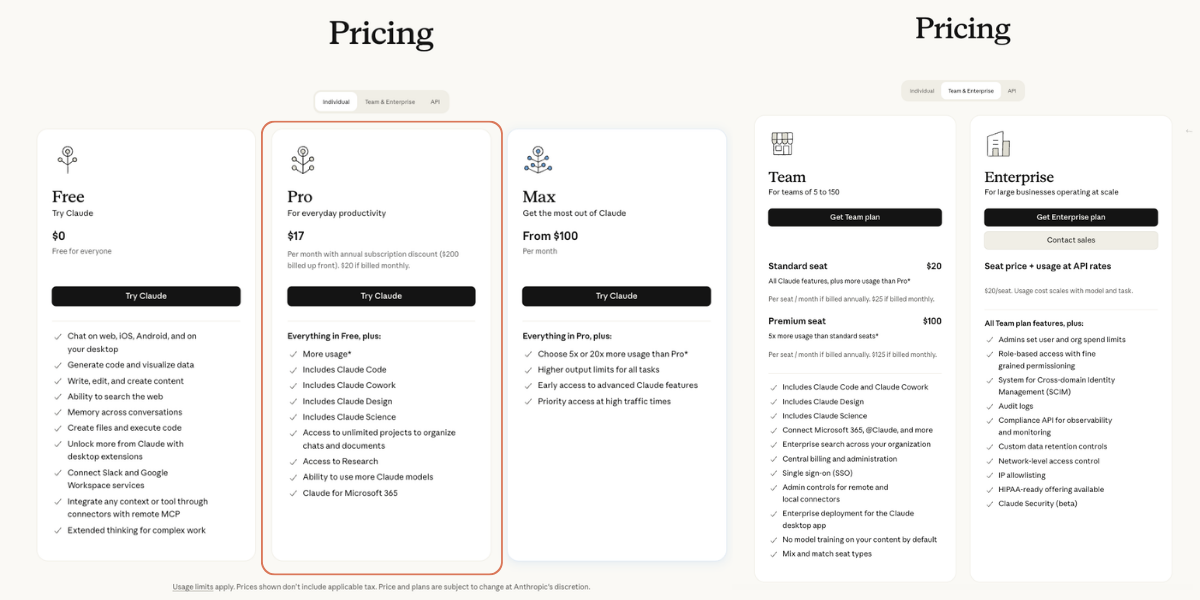
2. A paid Claude plan. Cowork isn't on the free tier — but it's included on every paid plan. There are two groups:
Individual plans
- Pro — about $20/month. Fine for getting started and testing the waters.
- Max — about $100/month (5x) or $200/month (20x). The numbers are usage multipliers: 5x and 20x more room than Pro.
Corporate plans
- Team — about $25/seat/month (Standard) or $125/seat/month (Premium), minimum five people. Both seat types include Cowork; Premium just gives each person a lot more usage room.
- Enterprise — custom pricing with the full admin and governance controls.
One real-world note: almost every business I work with runs a Claude Team plan on Standard seats (not Premium) — for most teams, that's the right place to start.
3. Your computer, awake and online. Cowork does its work on your machine, so the app needs to stay open and the computer needs to stay awake while a task runs. If your laptop goes to sleep mid-task, the task pauses. And you'll want a steady internet connection throughout.
Update (July 7, 2026): Cowork is now available on the web for Max subscribers, in beta (Anthropic's announcement). The web version runs in the cloud and works with your connected apps, but it can't access files on your computer — so if you want Claude to work with your local files, the Claude Desktop app is still the way to go.
Which plan should you actually start on?
My honest advice, and roughly what I tell clients:
If it's just you, start on Pro ($20). It's plenty to learn the ropes and run a few light tasks. Cowork does chew through your usage allowance faster than regular chat — it's doing a lot more work — so if you find yourself hitting limits regularly, that's your signal to move up to Max. Don't pre-pay for power you haven't needed yet.
If it's a team, start everyone on Standard seats and upgrade the heavy users to Premium as needed. You can mix seat types in the same account, so there's no reason to put your whole team on the expensive tier on day one. Let the usage tell you who needs more.
(Prices here are current as of mid-2026 — always worth double-checking Anthropic's pricing page since these things move.)
Getting Started: Your First Task
Once the app is installed and you're on a paid plan, here's the whole flow:
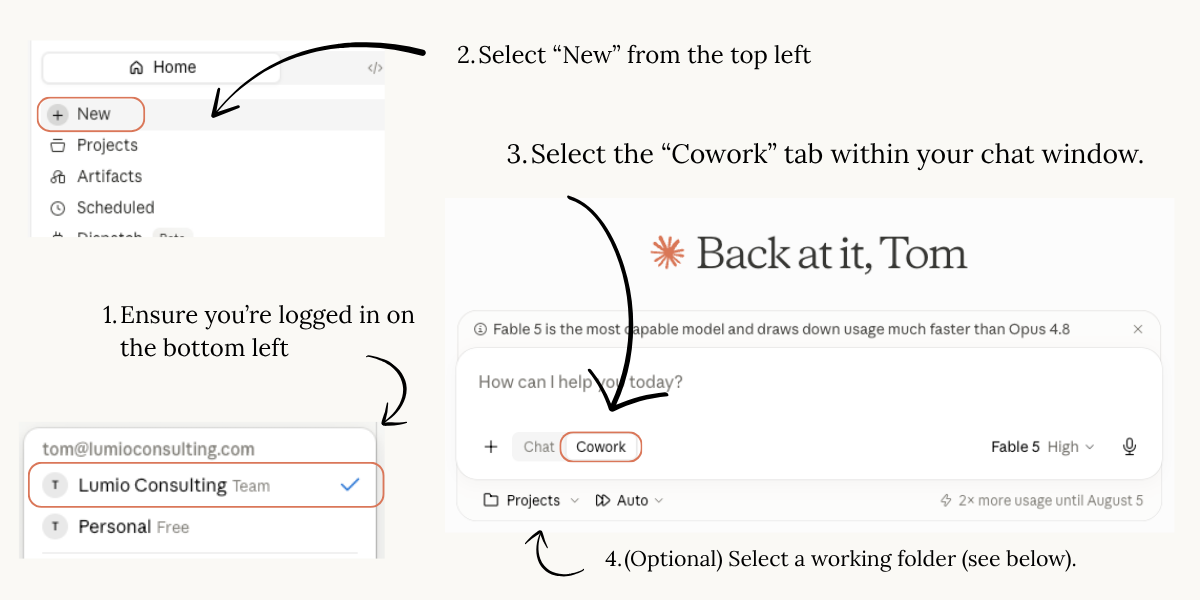
- Open the Claude Desktop app.
- Log in with your personal or team account.
- Click New Task in the top left.
- Select the Cowork tab in the chat window.
- Optionally attach a folder (the folder icon) to give Claude a dedicated workspace. Claude will only work in that directory for this chat session.
- Type what you want in plain language.
- Hit go and watch it work.
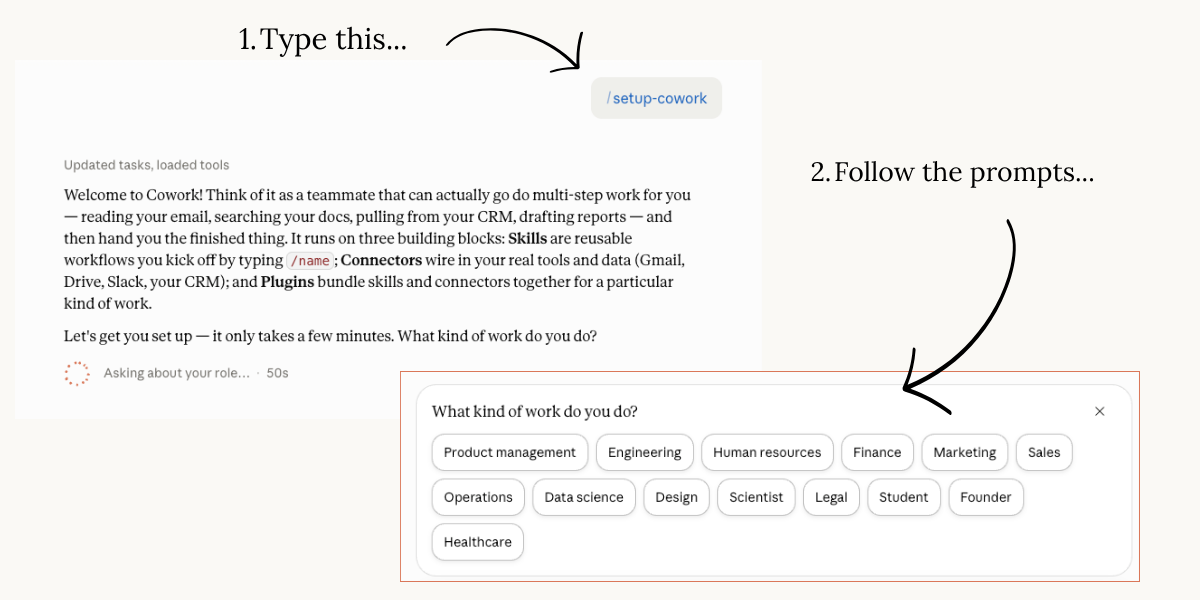
If you're not exactly sure where to start, Claude has a dedicated skill that can help you get set up. Just type /setup-cowork and Claude will guide you through a set of prompts to help you get started. (If you'd rather follow Anthropic's own walkthrough, their Get started with Claude Cowork guide is a solid reference.) I also have a few example tasks below.
Best Practices
You can do a few things to set yourself up for success. The first is setting your Global Instructions — these apply to every Cowork session, and you'll find them in your settings.
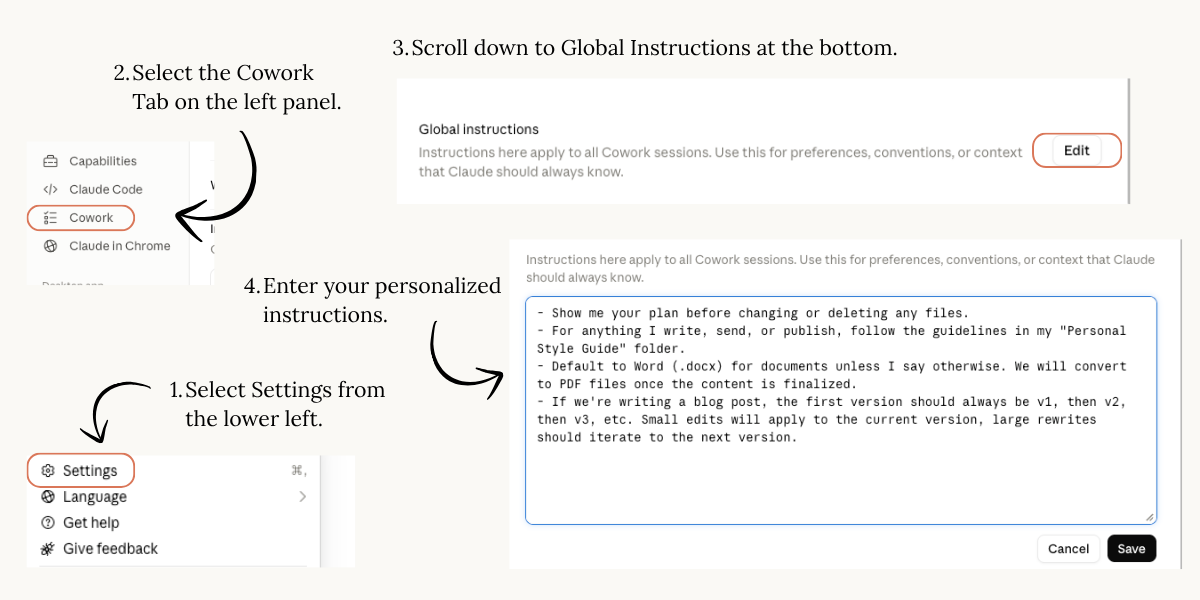
Hint: if you're not sure what to put here, leave it blank for now, and come back to it once you've gotten a feel for how you're using it.
The second is folder organization. I recommend creating one "Claude Projects" folder — on your desktop, or anywhere you'll remember — and giving every project its own sub-folder inside it, like "Project ABC" and "Project XYZ."
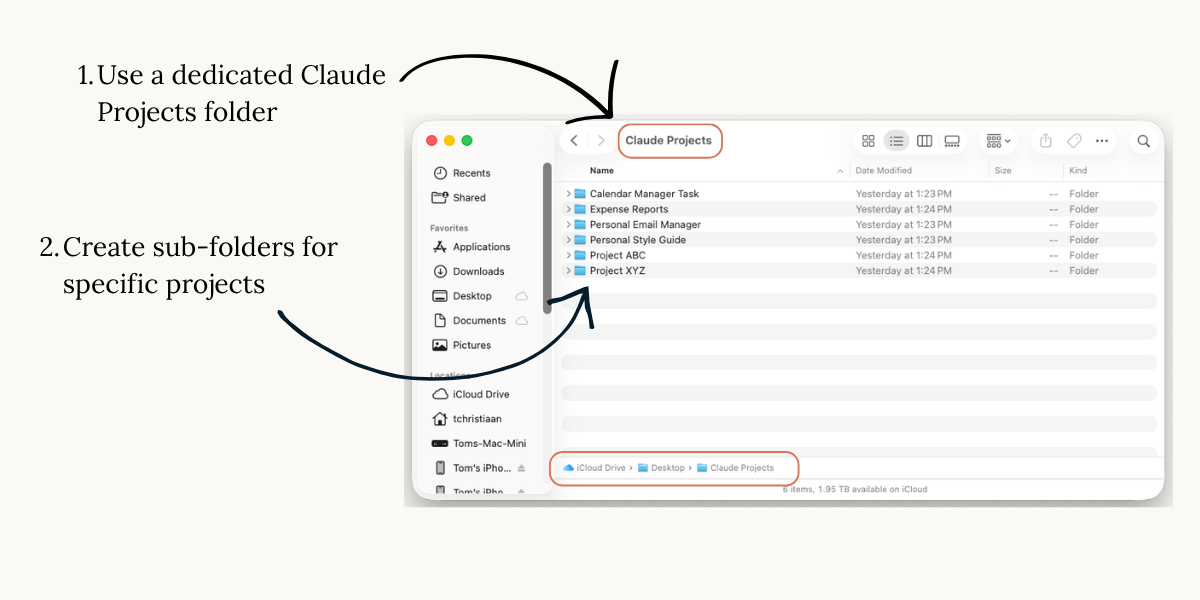
When I start a new task, I give Claude access to only the specific sub-folder it needs. It keeps access tight and everything organized.
Think of it like onboarding a new assistant: you don't want to give them access to everything right away, but you do want to give them a high-level overview of how you work.
A Couple Simple Tasks to Start With
Once you're up and running, here are a couple simple tasks to try.
1. A daily AI news brief, emailed to you at 7am
If you're feeling overwhelmed by the pace of AI and aren't sure how to stay on top of the changes, ask Claude to help.
Set the schedule once, and it lands in your inbox every day. Swap "AI news" for whatever you're interested in — remember, the more context, the better. (Email's a great place to start automating — I share a few more ideas in five practical email automations.)
Note: this task will ask to connect your email (more on that below); in this context (sending you an email) it's safe. If you ask it to read your email for a given task, that may require more caution.
2. A morning rundown of your calendar at 8am
A quick, human summary of your day — not just a list of events, but a heads-up on what's coming.
Similar to the first example, this task will ask to connect your calendar (and email, if it's not already connected).
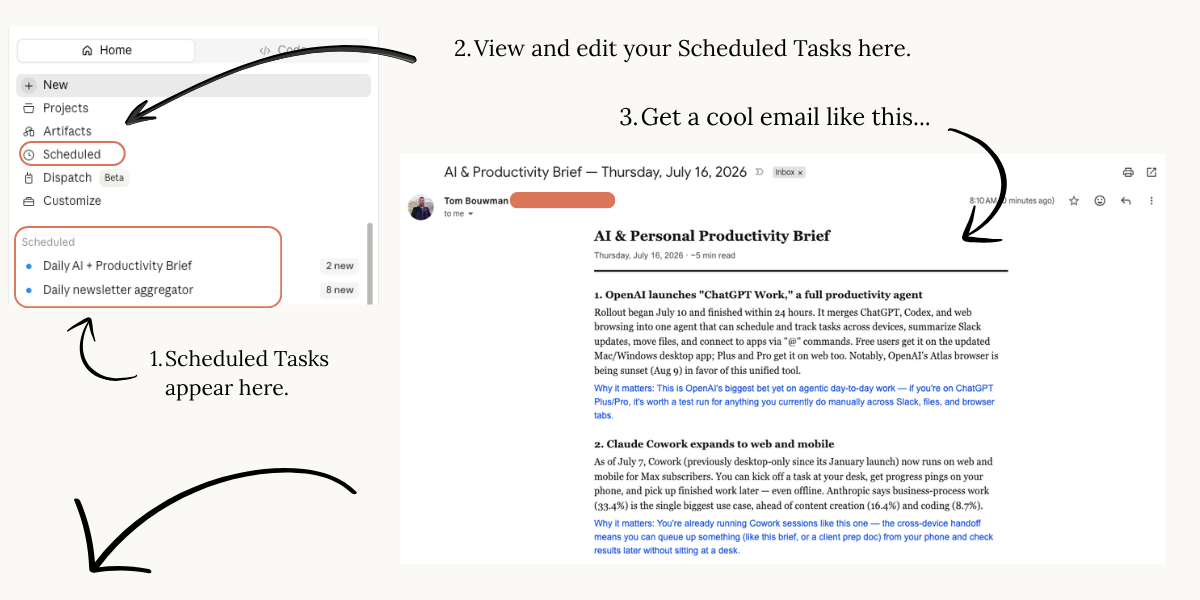
Both of these tasks unlock one of my favorite Claude features: Scheduled Tasks. And if it's working as intended, you'll see a "Scheduled" section pop up in your left sidebar. Anytime you want to make changes to a task, just open that session and tell Claude what you want.
A Quick Word on Permissions
If you built the examples above, or ran through the /setup-cowork guide, you were likely prompted to connect Claude to Gmail, Calendar, or other tools. That raises a fair question: how much are you actually letting Claude do on its own?
Two layers of permission decide that.
First, every connected tool has its own setting — chosen by you, or if you're on a team plan, by your company's administrator. Gmail, for example, can be set to Always Allow, Needs Approval, or Blocked.
Second, every chat session has a mode you control: Manual, Auto, or Skip.
Put those two together and you get a simple grid that decides when Cowork acts on its own and when it stops to check with you:
| Session mode | Tool: Always Allow | Tool: Needs Approval | Tool: Blocked |
|---|---|---|---|
| Manual | Approved | Asks your permission | Denied |
| Auto | Read-only: approved. Write/delete: Claude decides | Claude decides | Denied |
| Skip | Approved | Approved | Denied |
The upshot: if your session is in Skip mode and Cowork reaches for a tool that's Blocked, the request still gets blocked. But if that same tool is set to Always Allow, the identical request runs with no human approval at all. The tool's setting and your session mode always work together — which is exactly why it's worth knowing both.
The Stack: Skills, Connectors, and Plugins
Cowork works fine out of the box, but three building blocks let you shape it around your actual work. You don't need all of them on day one — but it helps to know the vocabulary.
Skills teach Claude how to do a specific kind of work — your report format, your brand voice, the way you like things laid out. Cowork comes with built-in skills for making Word docs, PowerPoints, spreadsheets, and PDFs, so it produces real, polished files rather than blocks of text. You can also create your own; there's a built-in helper that interviews you and writes the skill for you.
Connectors plug Claude into the apps you already use — Gmail, Google Calendar, Slack, Notion, and hundreds more. Connecting one is a one-time login, the same kind of "allow access" screen you've clicked a dozen times. Once connected, Claude can read from and write to that app as part of a task — which is what makes the email and calendar examples above possible.
Plugins are the "everything for this job, bundled" option. A plugin packages up the skills and connectors for a particular role — sales, finance, marketing, operations — so you install one thing and get a setup tailored to that kind of work instead of assembling it piece by piece. Anthropic ships a set of these, and you can build your own without touching code.
You get to all of these through the Customize area in the Cowork sidebar. Browse, install, toggle on and off. That's the whole model.
Security Concerns
You may be wondering whether Cowork is safe to let loose on your files. Fair question. Cowork does a few things to protect you, and there are a few things you can do to protect yourself:
- It only touches the folders you give it. That's your first and most important lever — hand it the specific folder for the job, and nothing else.
- Task automations run in an isolated sandbox, walled off from the rest of your machine — think of it as a separate, quarantined workspace where Claude can do its thing without putting anything else at risk.
- It only connects to apps you authorize, and you (or your admin) set the permissions for each one — so you keep granular control over what it can do on its own.
- It asks before the big stuff. Depending on your permission settings, Cowork will check with you before using an external tool or deleting a file — pay attention to those prompts until you're comfortable with how it works. And a simple "show me the plan before you make changes" gives you a checkpoint any time you want one.
I'll do a proper deep-dive on Cowork security in a later post; in the meantime, Anthropic's own Use Claude Cowork safely guide is worth a read, and if broader AI data privacy is on your mind, I cover that in AI privacy & security for small businesses. But the short version: for everyday work, it's no riskier than using your work email.
Where to Go From Here
Keep it simple and think about the little things you do every day that eat up time: checking your calendar for meetings, reading through newsletters, deleting spam, prioritizing your day based on email, etc. Ask Claude to help with any one of these, one at a time, and you'll start to get a feel for how powerful it is. (If you want a broader framework for deciding what to automate first, my what to know before you automate post is a good companion.)
There's a lot more to Cowork that I haven't touched on here: team projects, running tasks from your phone, folder-specific instructions, personal style guides and branding; those are posts for another day. For now, the basics above should be more than enough to get started.
Questions? Let's Talk
Got questions, or want a deep-dive on Claude Cowork for your own setup? Book a free 30-minute call and we'll dig into your specific use case.