
Claude Cowork or Claude Code? How I Decide Which One to Use
In my getting-started guide to Claude Cowork, I said you could effectively ignore the Code tab unless you're very technical. That's still the right advice when you're just getting started, and it's still the right advice for most people. But there are specific use cases for Claude Code, even if you're not technical.
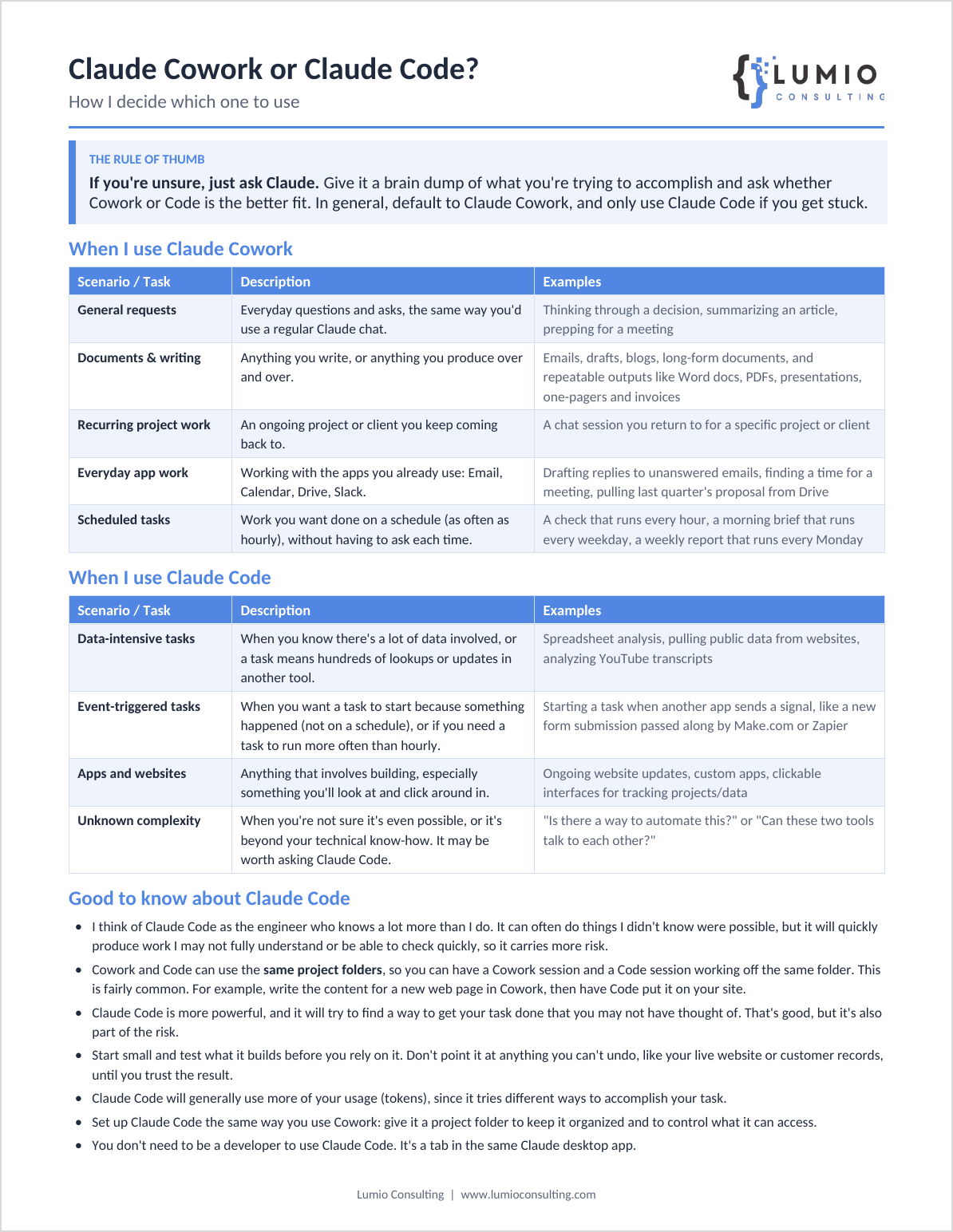
I put together a one-page cheat sheet on how I decide between the two. You can download and share this amongst your team as a quick-hit guide, or share this article for a deeper dive on the differences.
The short version
If you're unsure, the simplest thing to do is ask Claude. Give it a brain dump of what you're trying to accomplish and ask whether Cowork or Code is the better fit. If it tells you Claude Code, you can even ask it for specific instructions to hand over to Code. In general, I recommend always starting in Cowork, and only using Code if you get stuck, or you know the project ticks some of the boxes below.
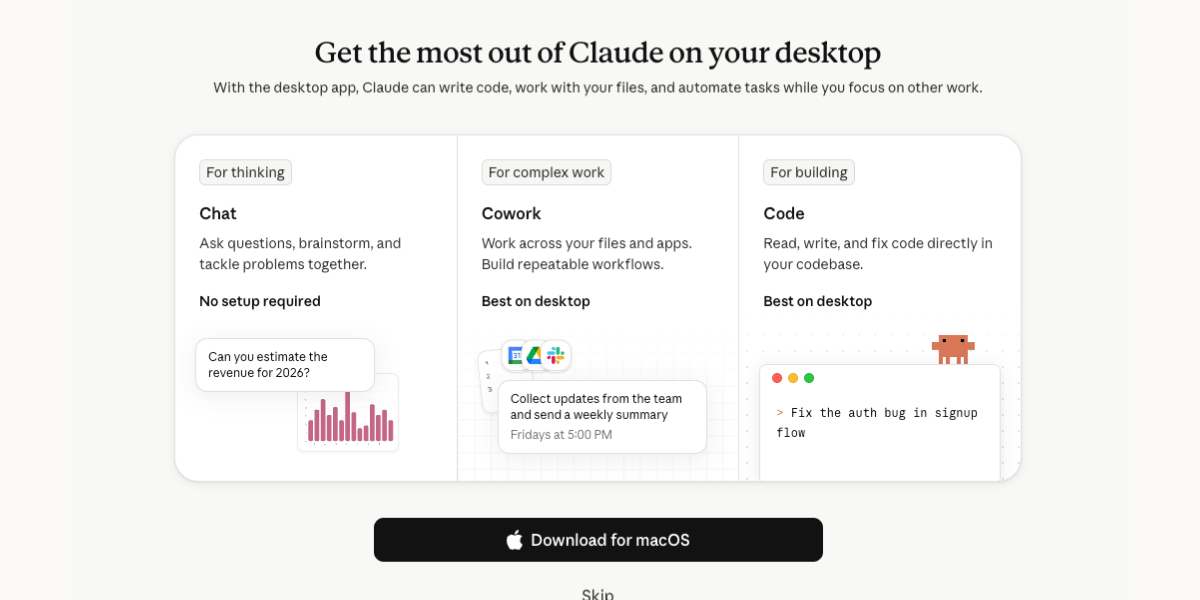
The Assistant vs The Engineer
Claude Cowork is your assistant for everyday work: writing, documents, the apps you already use, ongoing projects, and anything you want done on a schedule.
Claude Code is more like the engineer who knows a lot more than you do. It builds things, works through large amounts of data, and will often find a way to do something you didn't know was possible.
Both live in the same Claude desktop app. Code is just another tab, right next to Cowork. You don't need to be a developer to use it, and there's no scary terminal or command line.
When I use Cowork
Cowork is my default. Five kinds of work almost always start there.
1. General requests. Anything you'd ask a regular Claude chat: thinking through a decision, summarizing an article, prepping for a meeting. Cowork handles all of it, and it's the easiest place to start.
2. Documents and writing. Emails, drafts, blog posts, long-form documents, and anything you produce over and over: Word docs, PDFs, presentations, one-pagers, invoices. The cheat sheet for this post is a good example. I built it in Claude from a page of rough notes, then went back and forth on small edits (swap these two rows, rename this one so it stops wrapping onto a second line) until it fit on one page.
3. Recurring project work. An ongoing project or client you keep coming back to. Give each one its own folder and its own session, and you stop re-explaining the background every time you sit down to work on it.
4. Everyday app work. Once they're connected, Cowork works directly with your email, calendar, Google Drive, and Slack. Drafting replies to unanswered emails, finding a time for a meeting, pulling last quarter's proposal out of Drive. My own assistant runs on Cowork: it sends me a morning brief from my calendar and inbox, sends an end-of-day wrap-up, and keeps my client/project tracker updated from my email and calendar.
5. Scheduled tasks. Work you want done on a schedule, without having to ask each time. A check that runs every hour, a morning brief that runs every weekday, a weekly report that runs every Monday. My daily AI news brief lands at 7am on weekdays this way. Scheduled tasks can run hourly, daily, on weekdays, weekly, or whenever you click Run now, and they run in the cloud, so they still fire if your laptop is closed (unless the task needs files on your computer).
Notice that hourly is the floor. That matters in a minute.
When I use Claude Code
I move to Claude Code in four situations, most of which don't apply to the average person's daily work.
1. Data-intensive tasks. Spreadsheet analysis, pulling public data from a bunch of websites, analyzing YouTube transcripts. Also anything that means hundreds of lookups or updates in another tool, like updating a few hundred records in your CRM. Cowork tends to work through that kind of job one step at a time. Code is more likely to write a small script that handles the whole batch in one pass, which is faster and gives you something you can run again next month.
2. Event-triggered tasks. When you want a task to start because something happened (not on a schedule), or if you need a task to run more often than hourly. This one gets its own section below, because it's a distinction that can supercharge your productivity if you set it up correctly.
3. Apps and websites. Anything that involves building, especially something you'll look at and click around in: ongoing website updates, custom apps, clickable interfaces for tracking projects or data. A couple of my own side projects started this way. Abtme.co (a personal context engine) and DIY Agent (a custom agent builder) were both built in Claude Code.
4. Unknown complexity. When you're not sure something is even possible, or it's beyond your technical know-how. This is where the engineer comparison stems from. Describe the goal, ask whether there's a way to do it, and let Code work out the approach. "Is there a way to automate this?" and "Can these two tools talk to each other?" are both good Code questions.
Scheduled Tasks vs Event-Based Triggers
Cowork is great at doing things at a certain time via scheduled tasks, but it can't start a task based on an external trigger, like a form submission on your website, an email from a specific address, a transcript landing in Google Drive, or a new row in a Google Sheet. Being able to use those triggers can turn Claude (or any LLM) into a much more powerful, proactive tool.
Here's how that splits across my own work:
| Task | What it does | Scheduled task (Cowork) | Event-based trigger (Claude Code) |
|---|---|---|---|
| Morning brief | Runs at 7am: checks my calendar, inbox, and client/project tracker, and tells me who I may want to check in with | ✓ | |
| End-of-day wrap-up | Runs at 6pm: reviews sent emails, calendar events, and client interactions, then updates my client/project tracker | ✓ | |
| Weekly check-ins | Runs once a week: flags clients and contacts I haven't heard from or followed up with recently | ✓ | |
| Monthly hours | Runs once a month: reviews my calendar entries and totals my hours across each client | ✓ | |
| Pre-call research | When someone new books time with me, it researches them, emails me a summary, and drafts an outreach email | ✓ | |
| Post-call follow-up | When a call transcript lands in Drive, it writes the client recap and next steps, and blocks follow-up time on my calendar | ✓ | |
| Calendar updates | When a new event lands on my calendar, it cleans it up (color, travel time, naming) | ✓ |
The event-based tasks are the ones where timing matters. I want the recap out shortly after the call, not whenever the next hourly check runs.
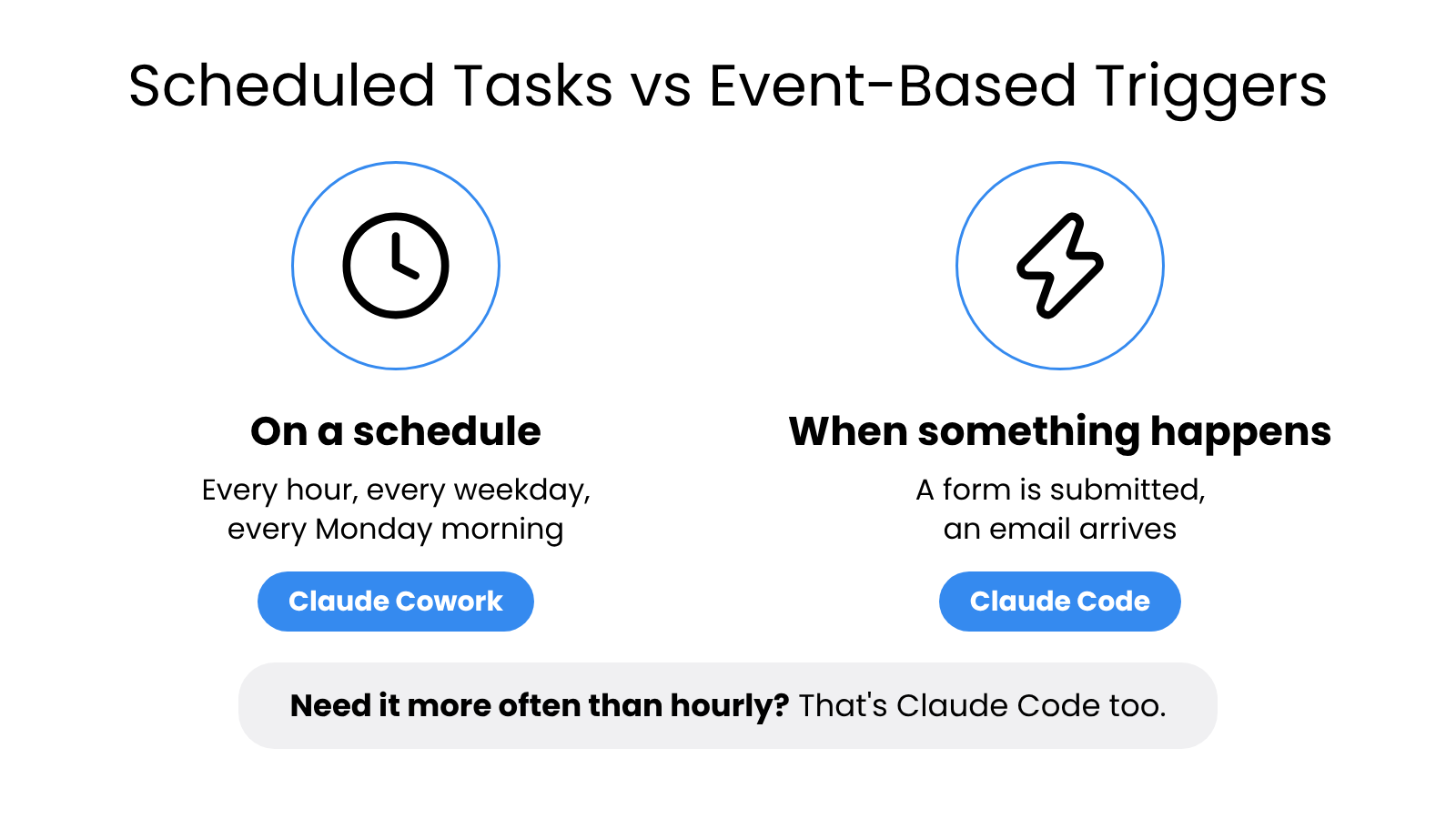
Setting up event-based triggers takes some technical plumbing (it usually involves an automation tool like Make.com or Zapier alongside Claude Code), so it's a good one to ask for help with.
More power, more risk
I think of Claude Code as the engineer who knows a lot more than I do. It can often do things I didn't know were possible, but it will quickly produce work I may not fully understand or be able to check, so it carries more risk.
It's also more persistent. Claude Code will try to find a way to get your task done that you may not have thought of. That's good, but it's also part of the risk. And because it tries different approaches along the way, it generally uses more of your usage (tokens) than Cowork does. If you already bump into your plan's limits in Cowork, expect to hit them faster in Code.
None of that is a reason to avoid it. A few habits keep the risk manageable:
- Start small and test. Try what it builds on something low-stakes before you rely on it.
- Don't point it at anything you can't undo, like your live website or customer records, until you trust the result.
- Give it a project folder. Set up Claude Code the same way you use Cowork: one folder per project, to keep it organized and to control what it can access.
- Ask for the plan first. "Show me your plan before you change anything" gives you a checkpoint before it starts.
If your team is starting to use tools that take actions on their own, my AI governance framework has a short section on keeping agents to the least access they need.
Using both on the same project
Cowork and Code can use the same project folders, so you can have a Cowork session and a Code session working off the same folder. This is fairly common.
A simple example: write the content for a new web page in Cowork, then have Code put it on your site. Cowork handles the part you'll want to read and edit closely. Code handles the part that needs building. Both see the same files, so nothing gets copied back and forth.
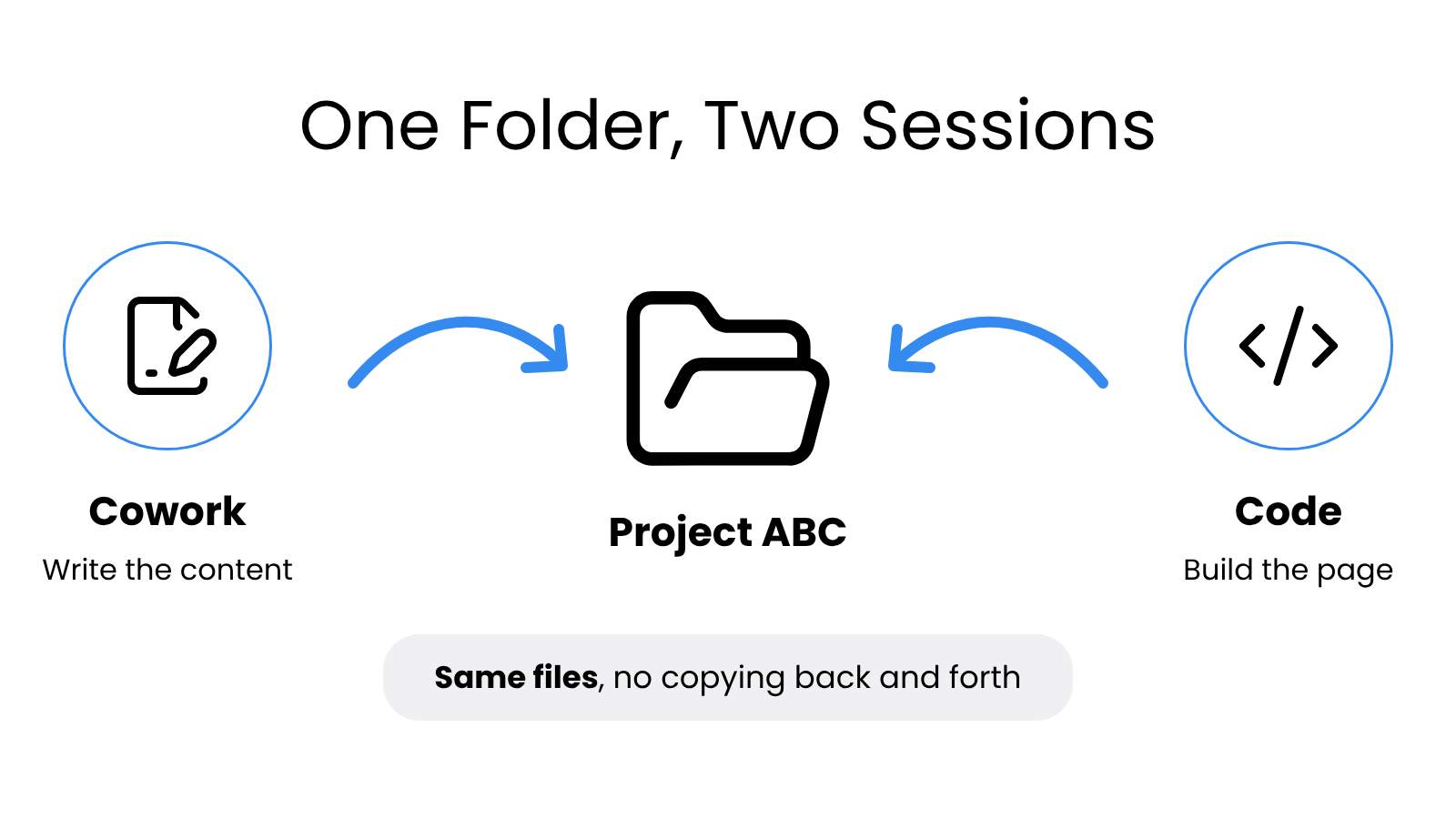
If you followed the folder setup from my Cowork guide (one "Claude Projects" folder with a sub-folder per project), you're already set up for this. Point the Code session at the same sub-folder.
What about Make.com, Zapier, and other tools?
Claude Code + low-code automation tools make for an incredible combination, and they're the first step toward proactive, agentic work, but the combination is geared toward tech-savvy power users. Some other places Claude Code shines:
- Volume. Hundreds of updates in another tool, where Code writes a small script instead of doing them one at a time.
- Tools without a connector. Code can work with many apps directly through their API (the behind-the-scenes way apps talk to each other), even when there's no ready-made connector.
- Automation plumbing. Setting up the connections between your automation tools and Claude Code.
If none of these apply, or it sounds over your head, stick with Cowork. It's incredibly powerful in its own right, and it's designed for most users.
Final thoughts
Start in Cowork. It covers general requests, writing and documents, ongoing projects, your everyday apps, and anything that runs on a schedule. Move to Code when the work involves a lot of data, building something you'll click around in, starting on an event instead of a clock, or a question you're not sure even has an answer. And when you can't tell, describe what you're trying to do and ask Claude which one fits.
Code is the more powerful tool, and that cuts both ways. Start small, test what it builds, and keep it in a folder you control. The two work best together, sharing the same project folder.
The one-page cheat sheet has all of this on a single page if you want to keep it handy or share it with your team.
Questions? Let's Talk
If you want help figuring out where Cowork and Code fit for your team, book a free 30-minute call and we'll map it out together.