Five Practical Email Automations You Can Build Today
Email is a core component of every business, and AI models combined with low-code tools have made it incredibly easy to implement simple, time-saving automations that minimize busy work. In this post, I'll walk you through five examples — some are just to show you what's possible, others are actual automations I run for my business.
I've primarily built these automations in Make.com, but all three platforms I use — Make.com, n8n, and Zapier — can handle these types of workflows. If you're not familiar with these tools, I wrote an overview of how they compare in a previous post.
Let's get into it.
1. Smart Inbox Sorting
Platform: Make.com
This is the one I'd start with if you've never automated your email before. The idea is simple: every time a new email arrives, AI reads it and applies a label so your inbox stays organized — without you lifting a finger.
Here's how it works: Gmail watches for new emails, sends the email to OpenAI to classify it, and then a router splits the output into four paths — one for each category. Each path applies the right Gmail label: Internal, Customer, Spam, or Unknown.
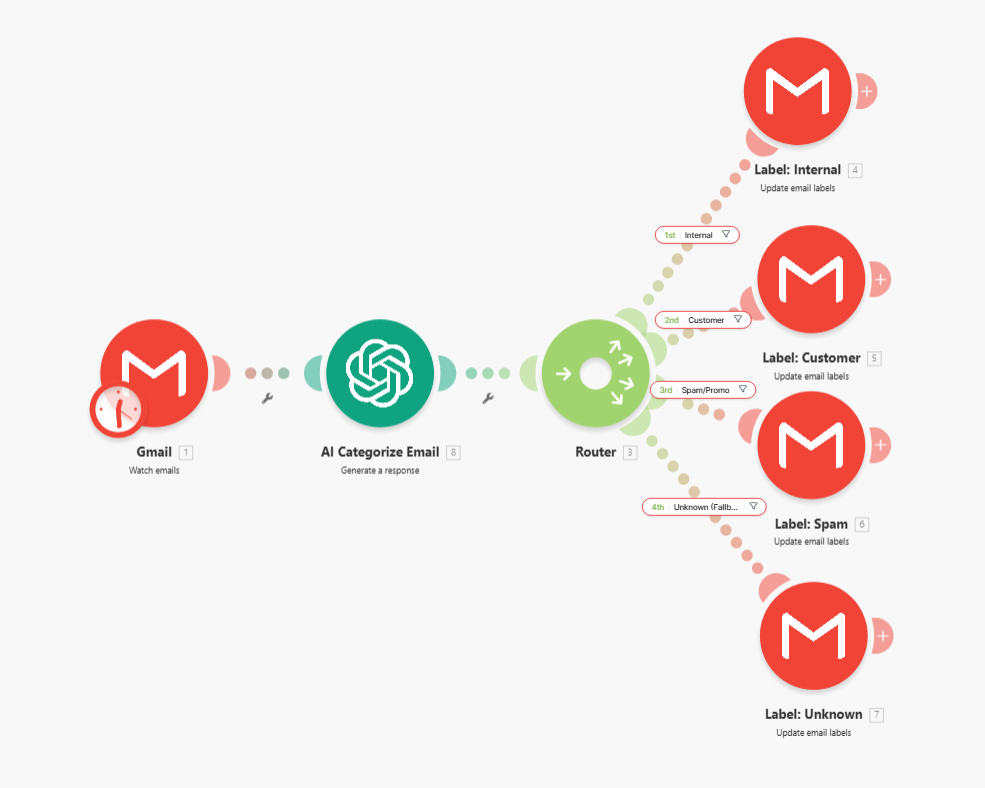
The key to this one is the AI instructions. Here's exactly what I'm sending to OpenAI:
Email Details: From: {{1.fromEmail}} Subject: {{1.subject}} Body: {{1.fullTextBody}}
That's it. The {{1.fromEmail}}, {{1.subject}}, and {{1.fullTextBody}} are Make.com variables that pull directly from the Gmail trigger. OpenAI reads the email and returns a category, and the router sends it down the right path.
What I like about this approach is that it's easy to extend. Need a fifth category for invoices? Add a route. Want to auto-draft replies for customer emails? Add a module after that label. The foundation is simple, and you build from there.
One thing to note: this is a deterministic approach. You're explicitly defining every route and every filter. It works great for a known set of categories — but if a new type of email shows up that doesn't fit your routes, it falls through to "Unknown." Keep that in mind, because in Workflow 5, I'll show you a completely different way to solve this same problem.
2. Daily AI Newsletter Digest
Platform: Make.com
Many of my clients are overwhelmed by the speed at which AI is evolving. They ask me for recommendations on how to stay on top of everything, and inevitably, I recommend a few newsletters — The Rundown AI, Horizon AI, Morning Brew, among others. This quickly spirals into newsletter hell, where you spend half your morning digging through news, looking for what's relevant to your role, while expending mental energy skipping over headlines you've already seen.
The solution? A simple newsletter aggregator that scans all of them for you and sends a single daily summary.
Here's how it works: every morning at 7 AM, the workflow searches Gmail for emails matching AI-related keywords from the past 24 hours. Each one gets sent to OpenAI for a quick summary. Then all the summaries are combined into one email and sent to me as a single digest.
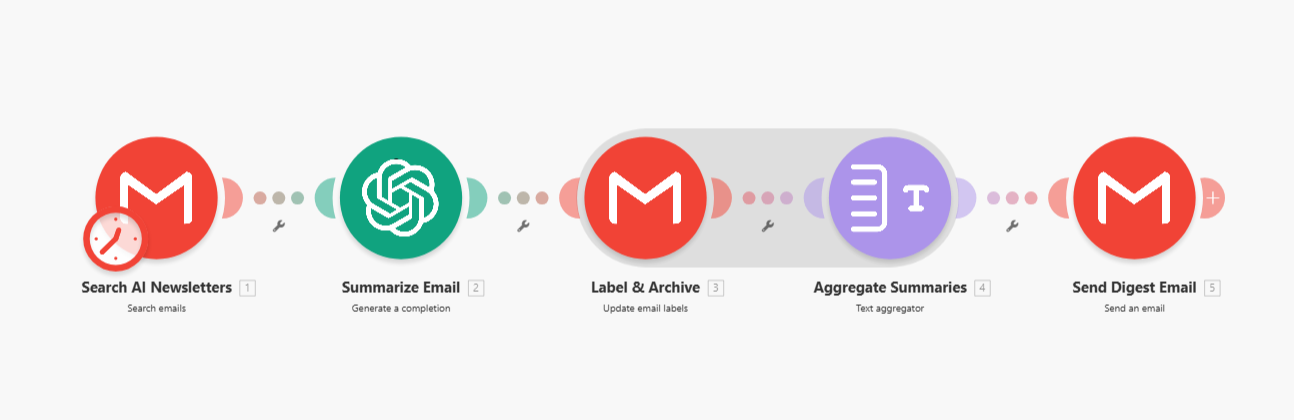
The whole thing runs once a day on a schedule — it's not watching for emails in real time. It retroactively searches for that day's newsletters, summarizes them, labels them as AI-Newsletters so they're organized in Gmail, and sends the compiled digest. One workflow, one pass, every morning. Instead of scanning through 8 newsletters at different points in the day, I get one summary over coffee. The individual emails are still there if I want to dig deeper, but 90% of the time the digest is all I need.
This automation is a quick and easy time-saver on its own, but you can make it even more powerful by adding logic to remove duplicate articles — only keeping the most relevant source — and highlighting content that's specific to your role. I used Claude Cowork to build a "news manager" that tracks all articles and sources in a Google Sheet for later reference — I'll dive into Claude Cowork in a later post.

3. Meeting Notes to Calendar Blocks
Platform: Make.com
This next example is a simple yet effective time-tracking (and time-blocking) automation that I use at Lumio. If you use an AI meeting notetaker like Gemini Notetaker, Granola, or Fireflies, you know the problem: you come out of a meeting with a nice summary and a list of action items, and then those action items sit in your email while you get pulled into the next thing. This automation fixes that by turning action items into calendar blocks automatically.
Here's how it works: Gmail watches for meeting summary emails from Gemini Notetaker. When one arrives, OpenAI reads the notes and extracts just my action items — filtering out anything assigned to other people. It estimates how long each task will take and assigns a priority.
Then comes the clever part. The workflow checks my Google Calendar for the next five business days to see when I'm free. A second AI call takes my action items and my availability, and figures out the best slots to schedule each one — avoiding conflicts, staying within business hours (8 AM to 5 PM Mountain Time), and skipping weekends. Finally, it loops through each scheduled item and creates a calendar event.
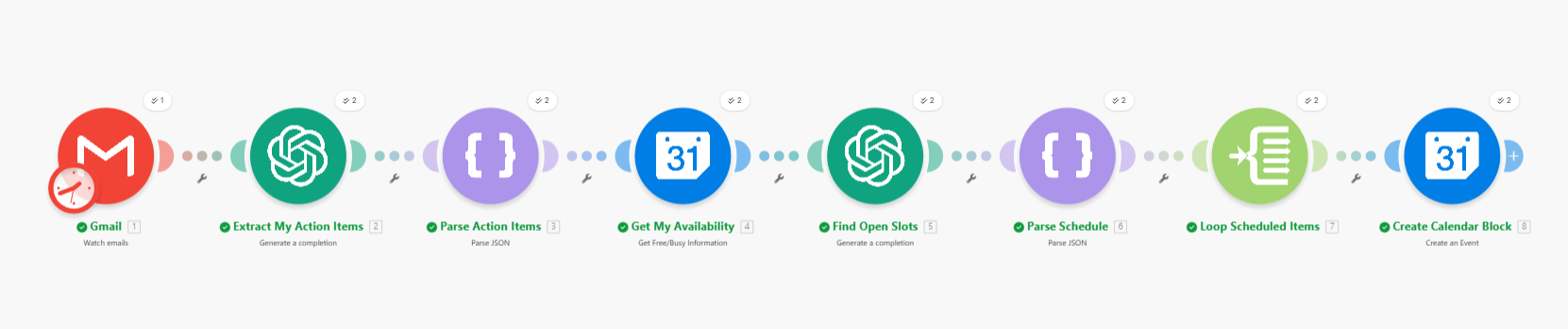
The two-pass AI approach is intentional. The first call is focused on understanding the meeting notes and extracting data. The second call is a scheduling engine — it has context about all the action items at once, so it can spread them across the week intelligently without double-booking itself. If I tried to do this in a single AI call, it wouldn't have the full picture of my calendar.
One edge case I ran into: if the Gmail trigger picks up multiple meeting summary emails at the same time, they process in parallel and see the same calendar snapshot — which can cause overlapping bookings. Setting the trigger limit to 1 email at a time solves this.
This is the kind of automation that saves me real time every week. I used to spend 15-20 minutes after meetings manually blocking off time for follow-ups. Now it just happens.
If you're already running an AI notetaker, there's a lot more you can do with that output than just calendar blocks. I covered several other workflows in Practical AI Notetaker Automations You Can Build Today.
4. Post-Booking Auto-Reply Draft
Platform: Make.com (originally attempted in Zapier)
When someone books a meeting with me through my Cal.com booking page, I want to send a quick, friendly acknowledgment — something like "Thanks for booking, looking forward to it." Nothing fancy, but it's a nice touch that shows you're paying attention.
This workflow watches for booking confirmation emails from Cal.com, uses OpenAI to extract the attendee's name and meeting details, and then creates a draft reply in Gmail for me to review before sending. It threads the draft into the original email conversation so everything stays organized.
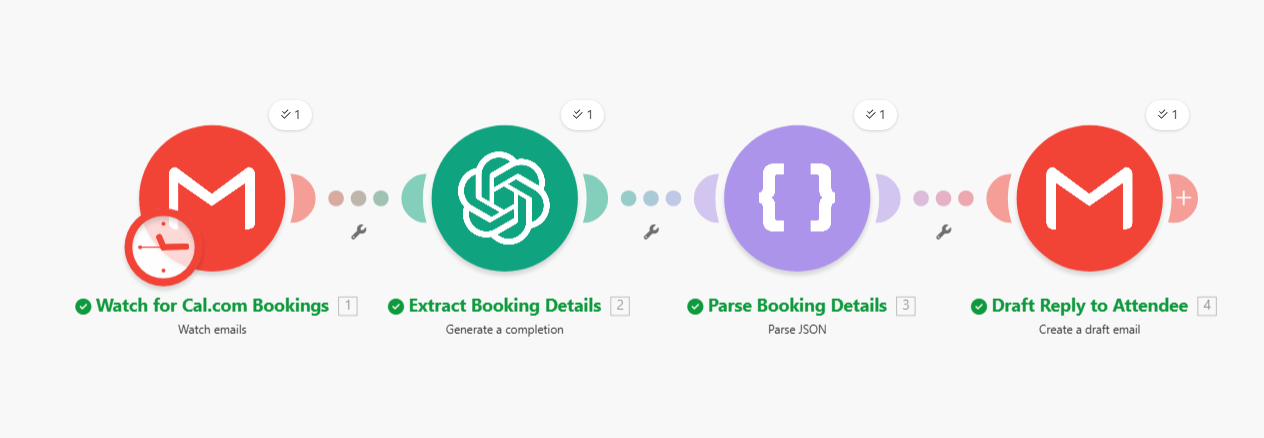
The draft is intentionally simple — just a few lines thanking them for booking and letting them know I'm looking forward to the call. I review it, maybe personalize a sentence, and hit send. The automation handles the 90% that's the same every time, and I add the 10% that makes it feel human.
A quick aside on platform choice: I originally tried building this in Zapier, since it's a straightforward trigger-action workflow. But Zapier's free tier only supports 2-step Zaps — and this needed 4 steps (trigger, extract, parse, draft). I would have had to upgrade to a paid plan for a single automation.
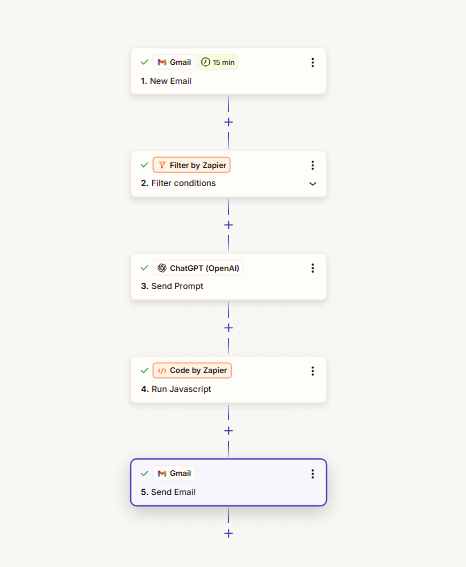
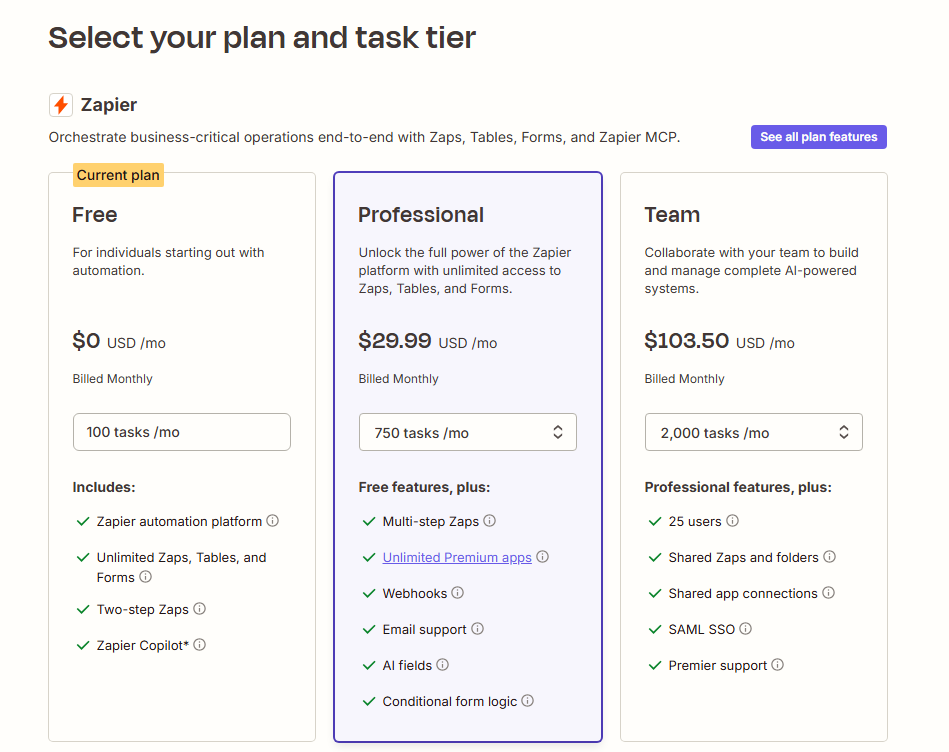
Make.com's free tier handled it without any issues. This is a practical lesson worth remembering: sometimes the best tool for a job isn't the one you start with. Don't be afraid to switch platforms if the pricing or limitations don't fit. If you want a deeper comparison of these platforms, I covered that in my post on low-code/no-code tools.
5. Agentic Email Handler
Platform: n8n
This last automation is a variation of Workflow 1, but I wanted to demonstrate how there are multiple ways to accomplish the same task. In Workflow 1, we built a deterministic solution — you define every category, build every route, and wire up every filter. It works well when you know exactly what to expect.
In this workflow, I built an agentic AI solution that's a bit more flexible. Instead of predefined routes, an AI agent reasons through each email and decides what to do on its own.
Here's the setup: Gmail triggers on new emails, and the email gets passed to an AI Agent node. The agent has four tools available to it — draft a reply, label the email, archive it, or check the calendar. The agent reads the email, thinks about what needs to happen, and uses whichever tools make sense. No router. No branches. Just an AI that understands the goal and picks its own path.
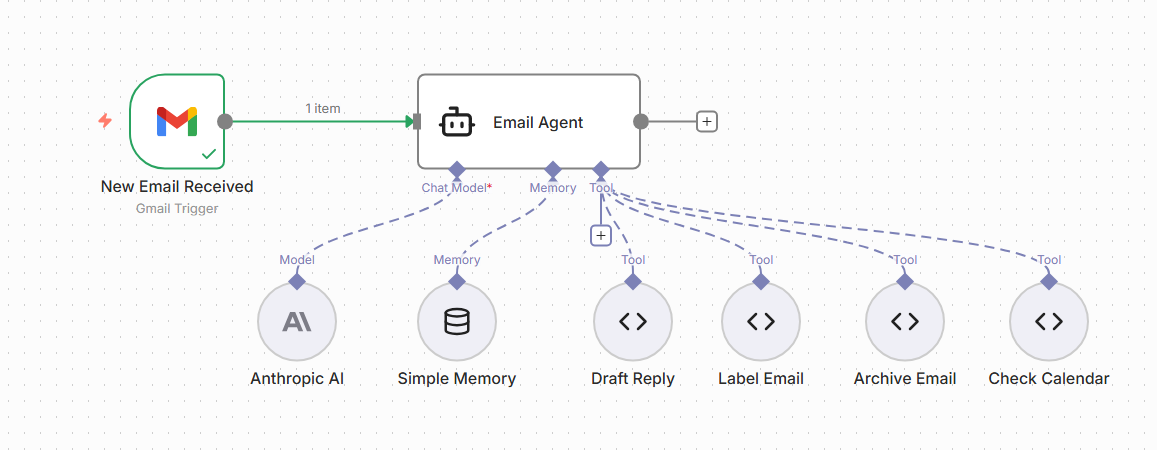
Here are the full instructions the agent operates on:
You are Tom's AI email assistant at Lumio Consulting, a Denver-based AI strategy and training firm.
When a new email arrives, analyze the sender, subject, and body, then decide the best course of action using the tools available to you.
Decision Framework
Meeting Requests or Scheduling: Check calendar for availability → draft a friendly reply suggesting 2-3 open time slots → label as "Scheduling"
Client Questions or Business Inquiries: Draft a thoughtful reply acknowledging their question (professional but warm) → label as "Client"
Newsletters, Marketing, or Promotional: Label as "Newsletter" → archive — no reply needed
Internal / Administrative: Label as "Admin" — no reply needed
Urgent or Time-Sensitive: Label as "Urgent" → draft a brief acknowledgment that Tom will respond shortly
Anything Unclear: Label as "Review" — no reply, Tom handles it manually
Important Rules
ALWAYS draft replies — never send emails directly. Tom reviews everything before it goes out. Be concise and professional. Sign off as "Tom" or "Thanks, Tom". Do not include a signature (Tom's email client adds it). When unsure, default to "Review". Do not mention that you are an AI assistant in any draft.
This is the key difference between Workflow 1 and Workflow 5. Workflow 1 had four explicit routes — Internal, Customer, Spam, Unknown. If a meeting request came in, it would just get labeled as "Customer" or "Unknown" because there was no route for scheduling. You'd have to go back in and build one.
The agent handles this automatically. Meeting request? Check the calendar and draft a reply with available times. Newsletter? Label it and archive it. Urgent email from a client? Label it, draft an acknowledgment. It handles scenarios I never explicitly programmed, because the instructions give it a framework for reasoning rather than a rigid set of rules.
The trade-off is control. With the deterministic approach, you know exactly what will happen every time. With the agentic approach, you're trusting the AI to make good decisions — which it does the vast majority of the time, but it's not 100% predictable. That's why every draft still goes through me before it's sent. The agent handles the thinking and the drafting. I handle the "send" button.
If you're curious about the difference between deterministic and agentic workflows, this comparison is the clearest way I can show it: same problem, two very different architectures, each with their own strengths. If you want to go deeper, I broke down what's actually happening inside an agent in Anatomy of an AI Agent, and took a wider look at where this is all heading in Agentic AI: Where We Are and Where We're Going.
It's Getting Easier Every Day
The best part about building these workflows is that the process itself is getting simpler. Instead of manually dragging and dropping every module, I've started asking Claude Cowork to build them out for me. There's some initial setup involved — generating API keys and plugging them into Claude — but once you have a grasp on how these platforms work, you can ask Claude (or ChatGPT, or Gemini) to do the heavy lifting for you. These tools can get you 90% of the way there. I'll cover that process in more detail in a future post.
Wrapping Up
Every example in this post builds on the same core idea — email comes in, AI understands it, something useful happens. The difference is just how much you let the AI do. And this is really just scratching the surface — once you start looking at email through this lens, you'll quickly notice other patterns in your day that could be automated just as easily.
If any of this sparked ideas, or you're curious what automation could look like for your team, book a free 30-minute call and we'll talk through it.